If you play live to a backing track, somebody on stage is always counting. The drummer counts the intro, the singer counts the breakdown, the keyboarder counts the gap before the last chorus, and the one person who actually knows where the song is sits side-stage looking at a laptop. An Ableton bar counter fixes that: a number big enough for the whole stage to read, counting down the bars to the next section. This guide covers what Live already gives you, the tricks that work without any extra device, and where a dedicated stage display makes sense.
The problem on stage
In the studio you never think about it. The Arrangement is right in front of you, the playhead moves, you see the next section coming. On stage that information lives on a 13-inch screen, often turned towards the playback tech, and everyone else works from memory and a click in their in-ears.
Most of the time that is fine. Then a song gets a new intro, or the venue is loud enough that the click disappears for a second, or a stand-in plays the gig after one rehearsal. Somebody miscounts, the guitarist comes in a bar early, and the audience hears it. The fix is not more rehearsal. It is making the count visible.
What Ableton Live shows you by default
Live is very good at telling you where you are. It just tells it to the laptop.
- Arrangement Position. The fields in the Control Bar show the play position in bars, beats and sixteenths. Accurate, always there, and about the size of a fingernail.
- Locators. In the Arrangement you can set locators with the Set button, rename them (Edit menu, Rename), and jump between them with the Previous and Next Locator buttons. Locators can also be MIDI- or key-mapped, which matters for live shows: a footswitch can skip to the next section. The Arrangement View chapter of the Live 12 manual covers all of it.
- Follow. With Follow on, the Arrangement scrolls with the playhead, so the next locator slides into view before you reach it.
- Session clip progress. In the Session View, the Track Status field above each track's mixer shows a pie-chart icon for a looping clip (with a count of how many times the loop has played) and a progress bar for a one-shot clip.
- Scenes and Follow Actions. Scenes can be renamed and coloured, can carry their own tempo and time signature, and in Live 12 they have their own Follow Actions, so a Session set can move from scene to scene on its own. See the Session View chapter.
What none of these do is count down. Live shows you bar 57.3.1; it does not say "two bars to the chorus". You do the subtraction in your head, and you need to see the laptop to do it. That is the gap.
Stage tricks that need no extra devices
Before you install anything, a lot can be solved with how you build the set.
Name locators like a setlist
Give every section a locator and a short, shouty name: INTRO, VERSE 1, CHORUS, BREAK, OUTRO. If the set holds several songs in one Arrangement, start each song's locator with the song title. It costs five minutes, makes the timeline readable at a glance, and every tool that reads locators (including the one further down) gets better with it.
Colour scenes and clips by section
If you run playback from the Session View, colour scenes by role. All choruses one colour, all breakdowns another. From two metres away nobody can read the scene name, but "the red one is next" works.
Put the cues in the click, not on the screen
Many bands do the counting by ear: a cue track with short spoken samples ("verse in two", "chorus", "last time") that goes only to the in-ear mix, never to front of house. In Live that is just an audio track with its own output routed to the monitor send. It is reliable and it costs nothing, but it has to be built for every song, and it does not help anyone who is not on in-ears.
The count-in is for recording
Live's metronome has a count-in setting in the menu next to the Metronome switch. It is easy to assume that solves the intro problem, but the manual describes it as a recording feature: Live waits with recording until the count-in is done. For a playback rig, a counted bar of click at the start of the song, or a spoken count in the cue track, is the safer way.
Use a second display
Live can open a second window (View menu, Second Window; see Ableton's dual monitor article). Put the Arrangement with Follow on a screen that faces the band and you have a visible timeline. Honest verdict: it helps the playback tech, but a full Arrangement on a stage monitor is still lots of small text. The drummer does not want to read a timeline. He wants one number.
A big bar counter for Ableton Live: OSCILLATE CUE
This is the gap I built OSCILLATE CUE for. It is a Max for Live device that counts the bars to the next section and shows them on a screen the whole stage can see. It is free.
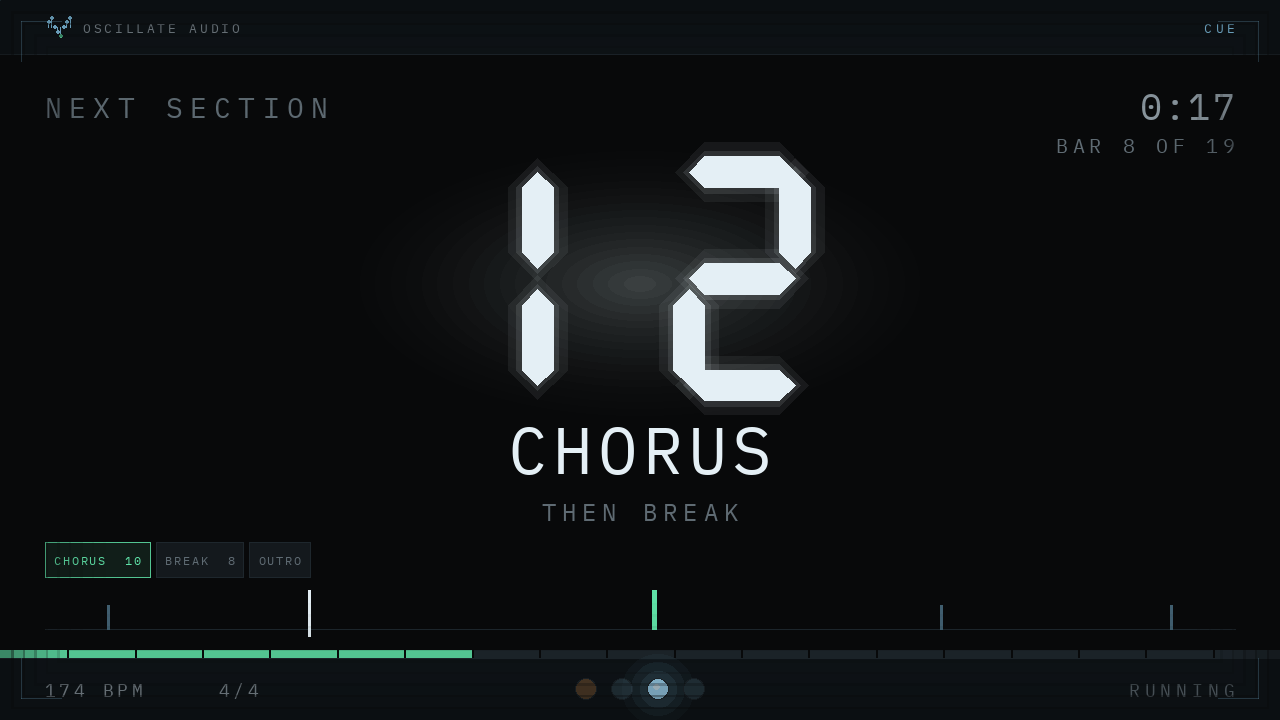
What it does, in plain terms:
- It reads what is already in your set. Bars until the next Arrangement locator, with the locator names, tempo and time signature straight from Live. No dummy clips, no naming convention. So everything from the locator section above pays off here.
- It has its own window. Press OPEN DISPLAY, drag the window to the screen that faces the band, pull the corner to size it. It stays on top, remembers its place and shows nothing but the count until you touch it.
- Stage tools appear with the mouse. Move the mouse into the window and two chips show up: FULL takes the window to fullscreen on whatever screen it sits on (Escape brings it back), MIRROR flips the image for a mirror rig. Take the mouse out and they are gone.
- A warning before the change. Inside the warning threshold (you set it, for example 4 bars) the whole display turns blue, and in the last bar the digit pulses with the beat. Below it the beat runs as a row of LEDs.
- More than the count. The window also shows the time to the next section and the bar you are in, for people who read a clock faster than they count. A setlist rail lists the next sections with their length in bars, the coming one framed in green.
It goes on the Main track, passes audio through untouched with no latency, and only reads from your set: locators, tempo, time signature, playhead. The one thing it can change is the playhead, and only when you double-click a locator on purpose. It needs Ableton Live 10.1 or newer with Max for Live (Suite, or Standard with the Max for Live add-on). I test it in Live 12.
One honest limitation: it counts to Arrangement locators. If your show runs entirely from Session scenes, this is not your tool yet. And time-signature changes in the middle of a song are untested so far. It reads the numerator and denominator every second, so it should follow, but if your count drifts, send me the set.
The best part for a band: you do not have to take my word for any of this. The product page runs the real device in your browser, same drawing and same arithmetic, with three example setlists (band, theatre, worship). Press play, drag the playhead, move a section boundary, switch on Mirror, and watch the count follow.
Ableton playback for bands: tips for multi-person rigs
A counter is one piece. These are the habits that make the whole playback rig calm.
- One Arrangement, one truth. Whether you run one song per set or the whole show in one long Arrangement, the locators are the shared language. Agree on section names in rehearsal and use exactly those names as locators. When the screen says CHORUS 2, everybody knows which one.
- Extend, do not mirror. Set the stage screen up as an extended display in your operating system, not a mirror of the laptop. Then the countdown window can go fullscreen out there while the tech keeps the full Live interface on the laptop.
- Set the warning to the band, not to yourself. Four bars is a good start for most pop and rock sets. Fast tempos (the demo runs at 174 BPM) may want a longer warning, slow ballads a shorter one. Ask the person who has to come in.
- Map the locators to a footswitch. Locators are MIDI-mappable in Live. If a song needs to be cut short or an intro repeated, a mapped "next locator" saves a walk to the laptop, and the counter follows the new position.
- Keep the cue track as a backup. Screens fail, cables get unplugged. A spoken cue in the in-ears and a visible count together are better than either alone.
- Rehearse with the screen where it will be on the night. Above the kit, on the side fill, or on the prompt monitor in the wings. A number that nobody looks at is not a cue.
If you also DJ between band sets or run DJ-style transitions out of Live, the guide on how to DJ in Ableton Live covers that side of a live rig.
What about a countdown to the next scene?
This is a common search, so a straight answer: Live itself does not show a countdown to the next scene. In a Session set, the Track Status field shows a looping clip's progress and loop count, and scene Follow Actions can move you on automatically, but there is no "bars until next scene" display in Live. OSCILLATE CUE counts to Arrangement locators, not to scenes. If your show can live in the Arrangement, that is the simplest route to a stage display that counts down. If it cannot, colour-coded scenes plus spoken cues in the in-ears are the reliable stock solution.
Questions people ask
Can Ableton Live show a big bar counter on a second screen?
Not by itself. Live shows the Arrangement position in the Control Bar and can open a second window, but it has no large countdown display. A Max for Live device such as OSCILLATE CUE adds a separate window you can put fullscreen on a stage screen.
Does Ableton have a countdown to the next section?
No. Live shows the current position in bars, beats and sixteenths and lets you set named locators, but it does not count down to the next locator or scene. You have to subtract in your head or use a device that does it.
Does the metronome count-in work for playback?
Live's manual describes the count-in as a recording feature: Live waits to record until the count-in has finished. For playback shows, a bar of click or a spoken count in the in-ear cue track is the usual way.
Is OSCILLATE CUE free, and which Live version does it need?
Yes, it is free for an email address, with all future updates included. It needs Ableton Live 10.1 or newer with Max for Live, and you can try the real device in your browser first.
Does a bar counter work with Session View scenes?
OSCILLATE CUE counts to Arrangement locators, so it is made for Arrangement-based sets. For Session-based shows, colour-coded scenes and spoken cues in the in-ears are the stock alternative.