If you already make music in Live, you have probably wondered how to DJ in Ableton Live instead of exporting everything into a separate DJ app. I have played out of Live for years. It works, it can be wonderful, and it also has a few honest weak spots. This guide covers both: the manual way with Live's own tools first, then where a dedicated device saves you time.
Ableton vs Traktor or Rekordbox: why DJ in Live at all
Traktor and Rekordbox are built for one job: playing finished tracks from a library, with jog wheels, hot cues and hardware that maps out of the box. If that is all you want, they are the faster road, and most club booths are set up around them.
Live is a different animal. Its strengths for DJing are the ones producers already know:
- Everything is an instrument. You can drop a synth, a drum rack or your own unreleased stems next to the tracks you are mixing.
- Your own effects. Any Audio Effect Rack you built in the studio works on stage.
- The grid is strict. Once a track is warped, it stays locked to the tempo. No drift, no nudging.
- Recording. The whole set can land in the Arrangement for later editing.
The trade-offs are real too. Live has no DJ library that shows you key and energy at a glance, no jog wheels, and warping a big crate takes time. Cueing in headphones needs an audio interface with at least four outputs. And a stock Live set is a mixer you build yourself, not one you open. If you like building, that is half the fun.
Preparing and warping tracks
Everything in a Live DJ set depends on warping. A track that is warped correctly follows the project tempo; a track that is not will drift within a minute.
- Turn on auto-warp for long samples in Live's preferences, so dropped tracks are analysed and warped automatically.
- Check the first downbeat. Open the clip, zoom in on the first kick and set a Warp Marker there. Right-click it and choose to set it as 1.1.1 if Live guessed wrong.
- Check the end. Jump to the last third of the track. If the kicks still sit on the grid lines, you are done. If not, add a second marker and drag it into place.
- Pick a warp mode. Complex Pro sounds best for full mixes but costs more CPU; Beats is lighter and fine for drum-heavy material. Test on your laptop with the set fully loaded.
- Save the clip (the Save button in the clip view) so the warp markers travel with the file into every future set.
Then add the things you would want in any DJ software: a clip colour per energy level, the key in the clip name, and loop brace positions on the intro and outro. It is manual, but you only do it once per track. The Ableton manual chapter on warping covers every mode in detail.
Building an Ableton DJ template by hand
Here is the stock setup I would start from. Save it as your default DJ set once it works.
Decks in Session View
Create two to four audio tracks and call them A, B, C, D. Each track is a deck; each clip slot holds a track. Since only one clip per track plays at a time, launching the next clip on a deck replaces the current one, so alternate between decks the way you would on CDJs. Set the launch quantisation to one bar (or longer) so everything lands on the downbeat.
EQ and filters on every deck
Put EQ Three on each deck. It has three gain knobs and a kill switch per band, which is as close to a club mixer as stock Live gets. Map the low knob first; bass swaps are most of DJ mixing.
After the EQ, add Auto Filter. Since Live 12.2 it has a DJ filter type: one knob that sweeps low-pass to one side and high-pass to the other, like the filter on a club mixer. On older versions, put a low-pass and a high-pass in a rack and map both to one macro with opposite ranges.
The crossfader
Show the crossfader from the View menu (Mixer Controls). Each track then gets A and B assign buttons: assign decks A and C to the left, B and D to the right. Right-click the crossfader to choose one of its curves; a sharp curve suits scratch-style cuts, a smooth one suits long blends. Honestly, many people skip the crossfader in Live and blend with the channel faders instead.
Return tracks for effects
Put a delay on Return A and a reverb on Return B. Turn up a deck's send for a throw, then pull it back. Set the delay to sync and a dotted eighth, and keep the reverb pre-filtered so the low end stays clean.
Cueing in headphones
This is the one part people get stuck on. On the Main track, set the Solo/Cue switch to Cue, choose your speakers on Main Out and your headphones on Cue Out (outputs 3/4 of your interface, for example). Every track's solo button now becomes a headphone button. Browser previews also play on Cue Out, which is handy for picking the next track. Details are in the Live manual's mixing chapter.
4 deck DJ in Ableton: the faster way
The template above works. It is also a lot of mapping, and none of it tells you which track is in a compatible key or how hard it hits. That gap is why I built a DJ mixer for Max for Live for my own sets.
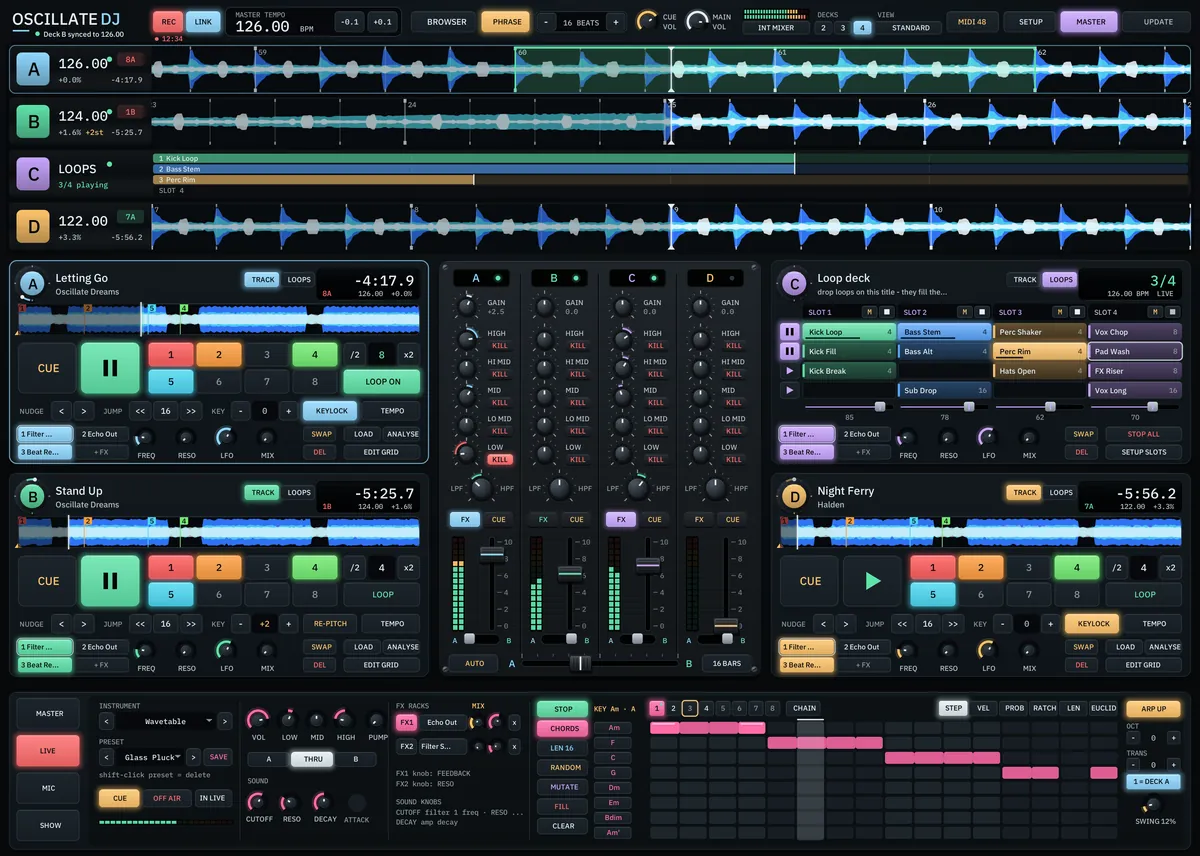
It puts two, three or four decks inside your Live set. Tracks are analysed in the background (BPM, beat grid, key in Camelot, energy 1 to 10), warped and locked to Live's grid. The mixer is either a five-band isolator with a kill on every band, or classic HIGH, MID, LOW. You keep your own Audio Effect Racks, up to four per deck, and loop and stem decks can fire Live clips. If you already have cues and playlists in other DJ software, it imports cues, grids, keys and playlists.
Be honest with yourself about the requirements before you buy: if you are on Live 11 or Windows, the manual template above is your route for now.
Adding live elements: a channel that plays in key
This is where DJing in Live gets interesting. Add a MIDI track next to your decks, load an instrument, and play over the mix. The stock way: put a Scale MIDI effect in front of the instrument and set it to the key of the track that is playing. Change the scale when the key changes. Arpeggiator or a simple clip loop gives you a pattern without having to play every note.
The weak point is the key. You have to know it and remember to switch it. In OSCILLATE DJ, this is the fifth channel, called LIVE: load any Live instrument, drum rack or plugin and play it with a step sequencer that follows the key of the track (up to 64 steps, Euclid, ratchets, eight patterns). A PUMP control ducks it on every beat so the kick keeps its room.
Holding FILL or IMPACT from PHONOLITH over a breakdown and letting go on the drop is the kind of moment Traktor alone will not give you. That is the real argument for DJing in Live.
Controllers, and seeing the count on stage
Any MIDI controller works in Live: press the MIDI button top right, click a control, move a fader, done. Map the low EQ, the filter, the channel faders and the clip launch per deck first; everything else is a bonus. Push works for launching, and a small DJ controller gives you faders and jogs that feel familiar. OSCILLATE DJ has MIDI learn plus templates for Push 2 and the DDJ-FLX4, and it can send Live to separate outputs for an external DJ mixer.
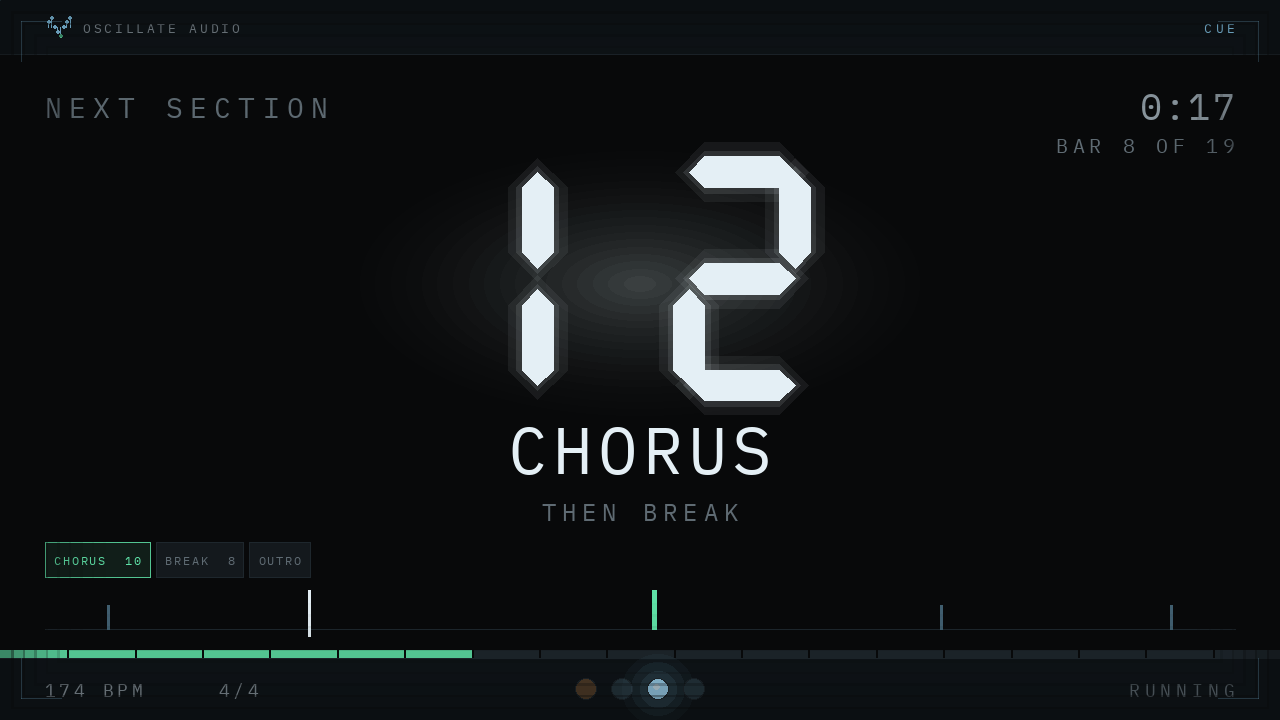
One last thing that is easy to forget: when you play with other people, nobody else can see your laptop. If you prepare sections with Arrangement locators, a bar counter on a second screen tells the singer or the lighting person when the drop comes. I wrote about that in the guide to a bar counter for live shows, and our free OSCILLATE CUE does exactly that.
Where to start tonight
Warp ten tracks properly. Build two decks with EQ Three and the Auto Filter DJ type, set up Cue Out, and mix for an hour. You will know very quickly whether Live is your DJ tool. If it is, add the decks, the library and the live channel, by hand or with a device, and play the set only you could play.
Questions people ask
Can you DJ with Ableton Live?
Yes. Warp your tracks, use audio tracks in Session View as decks, add EQ Three and a filter per deck, and set up Cue Out for headphones. Many producers play their whole sets this way.
Is Ableton better than Traktor or Rekordbox for DJing?
It depends on what you want. Traktor and Rekordbox are faster for playing finished tracks from a library with DJ hardware; Live is stronger if you want to add instruments, your own effects and stems to the mix.
How do I cue tracks in headphones in Ableton Live?
You need an audio interface with at least four outputs. On the Main track set Solo/Cue to Cue, choose your speakers as Main Out and your headphones as Cue Out; each track then gets a headphone button.
Do I need Max for Live to DJ in Ableton?
No, the stock template in this guide uses only built-in devices. Max for Live devices like OSCILLATE DJ add a library with key and energy, a club mixer and a key-following sequencer channel.
Which warp mode is best for DJing in Ableton?
Complex Pro usually sounds best on full mixes but uses more CPU. Beats is lighter and works well for drum-heavy tracks; test with your full set loaded.